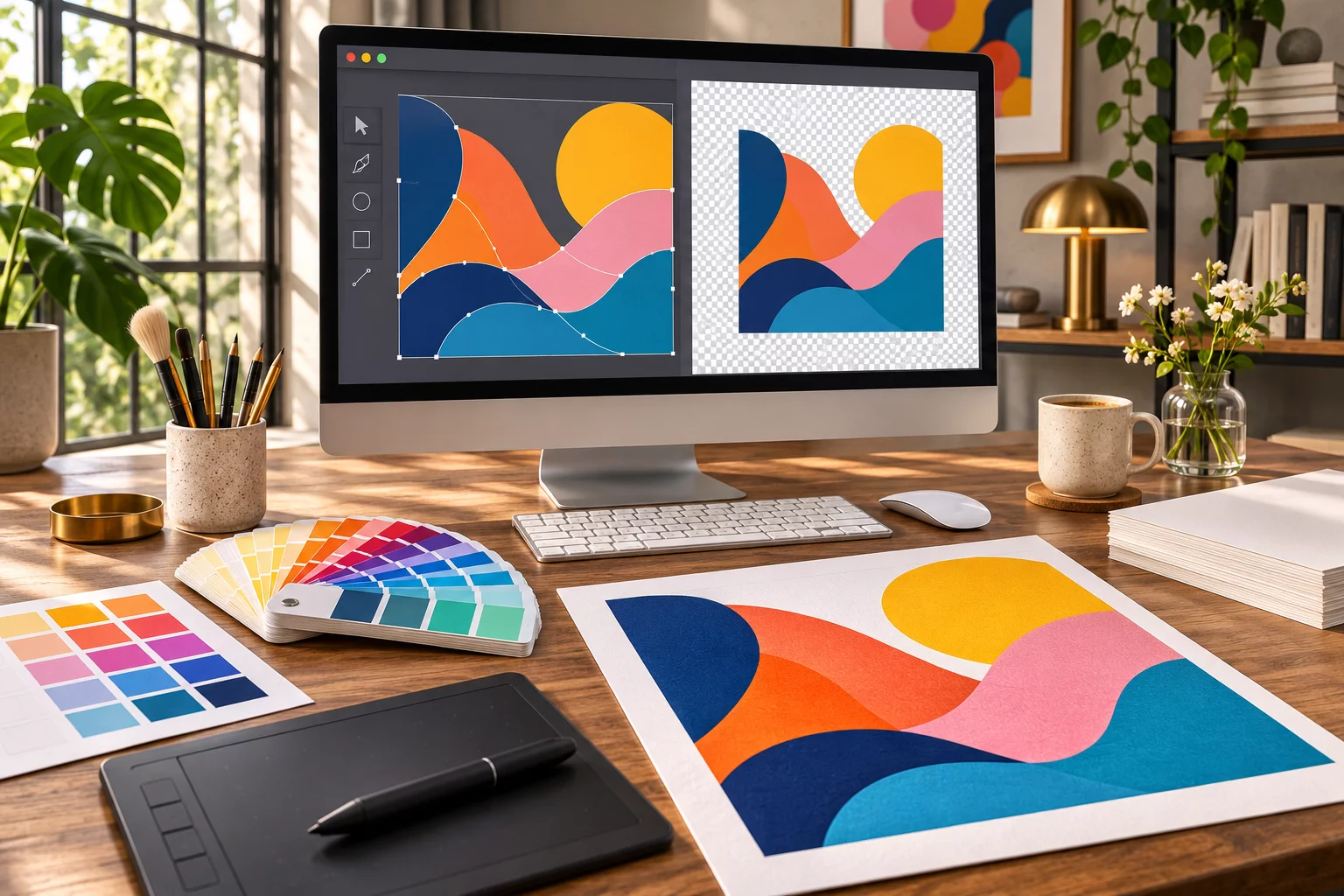
The most common artwork problem is not a dramatic error. It is a small image that looked fine on a phone but becomes soft when stretched across the front of a hoodie. The second is a background that was meant to be transparent but prints as a white rectangle. Both are easier to prevent than to fix at the last minute.
Start with the best original file
A logo made as vector artwork can scale cleanly because its edges are defined by paths. A photograph is made of pixels and needs enough real detail at the final print size. Enlarging a low-resolution screenshot does not add the missing information. If you have the original camera image or design file, use that rather than a copy saved from a chat app.
For photographs and raster designs, check the pixel dimensions against the intended print area. For example, a 3000-pixel-wide image placed 10 inches wide has 300 pixels per inch; the same file placed 20 inches wide has 150. The right production target depends on the method and material, but this calculation tells you whether you are stretching the source.
Keep the background intentional
Use a transparent PNG when you want only the artwork to appear over the product colour. A JPEG cannot preserve transparency. If your design includes a cream rectangle, make sure it is a deliberate part of the composition rather than an accidental export background. Preview the file over both light and dark colours before you commit.
Design at the size people will see
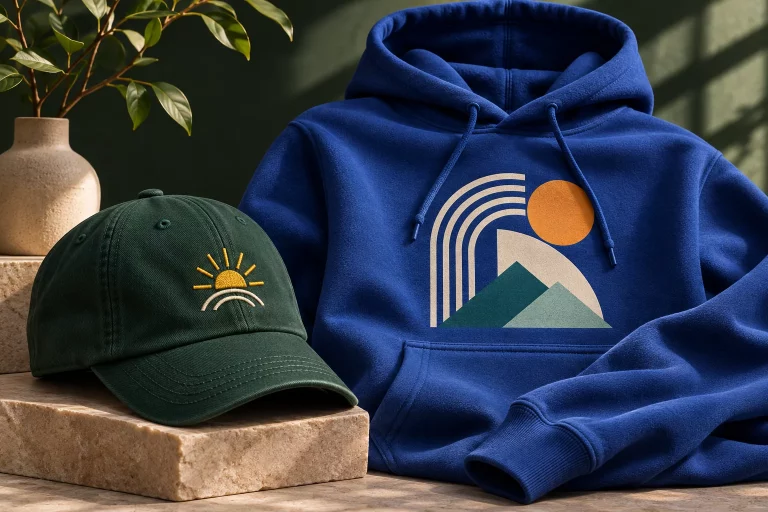
Thin outlines and tiny type can look crisp at 400% zoom and disappear on a finished product. Print a draft on paper at roughly the intended size, or step back from your screen. Give a cap motif simpler shapes than a full-front shirt illustration. Leave room around seams, pockets and edges.
- For logos and line art: retain the editable vector source when possible.
- For photographs: use the original high-resolution image and avoid aggressive sharpening.
- For text: check every name, date and accent mark yourself.
- For colour: expect screens, fabric and finish to differ; a digital preview is a guide, not a physical proof.
- For rights: upload only artwork you own or are authorised to use.
Our design guide explains the Studio controls. You can then upload artwork or add text in Custom Studio. If you are unsure whether a file will work, send us a clear question before placing the order.
For the underlying file formats, see Adobe’s raster and vector explanation.